All-in-One Printers vs Single-Function Printers: Key Differences Explained

All-in-one printers and single-function printers both make sense in business settings, but they serve different office workflows. This comparison weighs scan and copy needs, print volume, reliability, footprint, total cost, support burden, paper handling, and whether one device should own multiple tasks.

By: Harley Hansen
Updated: June 24, 2026
Approx. 10-12 min read
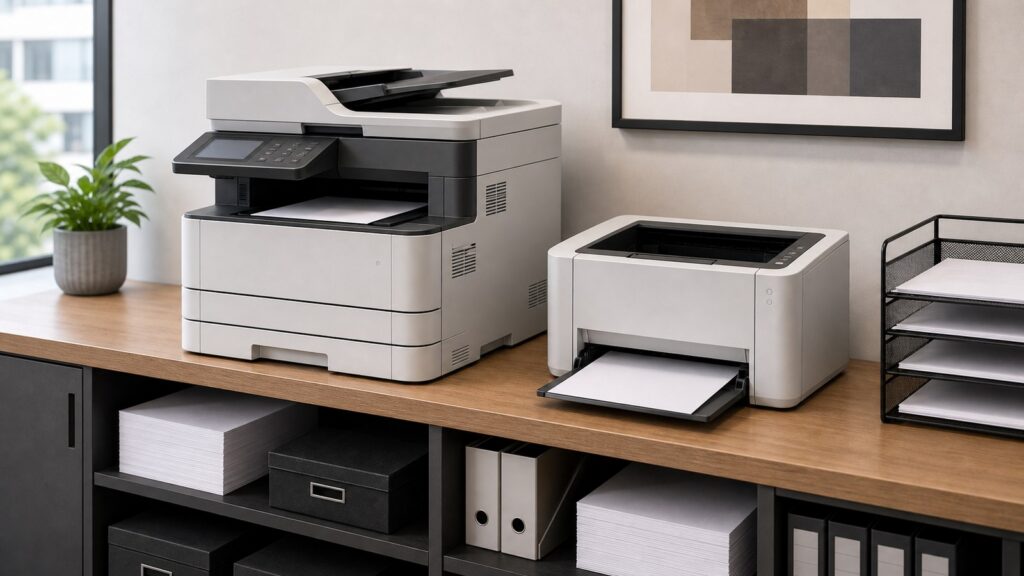
All-in-One Printers vs Single-Function Printers business comparison image

Head-to-head

All-in-One Printers vs Single-Function Printers: Key Differences Explained

A practical A/B look at all-in-one and single-function printers, focused on scanning, copying, print volume, reliability, footprint, cost, and workflow fit.

All-in-One Printers comparison image

All-in-One Printers

All-in-one printers are stronger when the office needs print, scan, copy, and sometimes fax in one shared device with fewer separate machines.

Score 8.6 Best for multi-function offices Functions Print/scan/copy Why buy Versatility
  • Combines several office tasks
  • Reduces separate device footprint
  • Useful for paperwork-heavy teams
VS
Single-Function Printers comparison image

Single-Function Printers

Single-function printers are stronger when the business only needs printing and wants a simpler, focused device with fewer non-print failure points.

Score 8.4 Best for print-only reliability Functions Print only Why buy Focus
  • Keeps printing workflow simple
  • Can be easier to support
  • Good for high-volume print stations
Metric
All-in-One
Single-Function
Winner
Scanning/copying
Stronger
None
All-in-One
Print focus
Good
Stronger
Single
Footprint
One device
Smaller
All-in-One
Reliability simplicity
More parts
Stronger
Single
Shared office fit
Stronger
Print-only
All-in-One
Best use
Mixed tasks
Print queues
All-in-One
Real-world context
All-in-one printers win when the office needs scanning and copying; single-function printers win when print-only speed and simplicity are the entire job.

All-in-One - Why people choose it

  • Print, scan, copy, and sometimes fax
  • Good for shared paperwork workflows
  • Fewer separate office devices

Single-Function - Why people choose it

  • Simpler print-only workflow
  • Good for dedicated print queues
  • Fewer scanner or ADF support issues
Winner: All-in-One Printers All-in-one printers are the stronger default for mixed office workflows, while single-function printers are better for dedicated print-only stations.
Read FAQs

Deep dive

What actually matters in this matchup

The all-in-one-versus-single-function choice depends on whether printing is the whole job. We weighted scan and copy needs, print volume, ADF use, paper handling, device footprint, reliability simplicity, support workload, supply cost, and whether one shared device should own multiple office workflows.

Workflow coverage: All-in-one printers are useful when teams scan invoices, copy forms, digitize signed documents, or occasionally fax. Combining those tasks into one device can reduce clutter and simplify purchasing, especially in small offices without a dedicated document center. That matters practically.

Print-only focus: Single-function printers are attractive when the business only needs output. A print-only device can be simpler to deploy, easier to understand, and less likely to create support tickets around scanner glass, ADF jams, scan-to-email settings, or fax configuration. Practically speaking.

Shared device risk: Combining functions can create a bottleneck when one device handles every print, copy, and scan job. A busy office may still need a dedicated scanner or a second printer. The right answer depends on queue volume and how urgent each task is.

Cost and footprint: All-in-one devices can save space compared with buying separate machines, but buyers should compare supplies, maintenance, warranty, ADF quality, duplex scanning, network setup, and whether a printer problem would also disable scanning or copying. That keeps final rollout planning practical.

Support model: IT teams should think about drivers, scan destinations, cloud print options, permissions, firmware updates, security, and who clears paper jams. A simpler single-function printer can be a better shared-office appliance when scanning is rare or handled elsewhere. That matters practically.

Final choice: All-in-one printers earn the default edge for business equipment because many offices need scan and copy workflows beside printing. Single-function printers remain the better fit when the business wants a focused print station with fewer extra features to support. Today.

Methodology

How we evaluated the matchup

This comparison uses current category research and buyer-decision analysis rather than hands-on lab testing.

Scope: This comparison uses official product information, vendor documentation, and buyer workflow analysis. We did not claim hands-on lab testing of All-in-One Printers and Single-Function Printers; the goal is to map practical fit, adoption risk, and purchase criteria. Practically speaking.

What we compared: We compared scan and copy needs, print volume, paper handling, footprint, reliability, support, cost, and document workflow, operating control, implementation effort, scalability, cost shape, reporting needs, integration burden, data governance, support expectations, and how quickly a business can get reliable outcomes after setup.

How results are interpreted: The winner is the stronger default for the buyer described here, not a universal answer. All-in-One Printers and Single-Function Printers can both be correct when company size, workflow maturity, budget, staffing, and change-management tolerance point different directions.

What buyers should verify: Before deciding, verify current pricing, feature availability, contract terms, migration support, security requirements, data ownership, integration limits, reporting depth, exit options, and the internal owner who will keep the workflow working. That keeps rollout planning practical.

FAQ

All-in-One Printers vs Single-Function Printers: common questions

Are All-in-One Printers and Single-Function Printers direct substitutes?
Sometimes, but not perfectly. All-in-One Printers and Single-Function Printers can solve overlapping business problems, yet they usually differ in ownership model, workflow depth, implementation effort, reporting style, and long-term flexibility. Start with the process you need to improve, then compare fit. Practically speaking.
Which option is better for most businesses?
All-in-One Printers is the stronger default for the buyer described in this comparison because it better matches the central workflow tradeoff. Still, Single-Function Printers can be smarter when team size, budget, integration needs, compliance requirements, or internal ownership point another direction. Practically speaking.
When should a team choose All-in-One Printers?
Choose All-in-One Printers when its strengths match the workflow you repeat often and the team can own adoption after launch. Verify integrations, reporting depth, user permissions, migration effort, support needs, and renewal terms before assuming it will stay practical after kickoff. Practically speaking.
When should a team choose Single-Function Printers?
Choose Single-Function Printers when its strengths match the buyer's constraints better than All-in-One Printers. Before committing, check implementation scope, data portability, user limits, support coverage, compliance fit, and how much training the team will need to use the option consistently. That matters practically.
Should price decide the comparison?
Price should be a gate, not the whole decision. A cheaper option can cost more if adoption fails, integrations break, reporting is weak, or migration takes longer than planned. Compare total ownership cost, setup effort, support needs, and switching friction. That matters practically.
Can a company use both options together?
Yes. Some teams combine All-in-One Printers and Single-Function Printers when each solves a different part of the workflow. Define which system owns records, reporting, approvals, and ongoing changes so the combination does not create duplicated work or unclear accountability. That keeps planning practical.
What should buyers verify before deciding?
Verify the current feature set, pricing page, contract length, security posture, data export options, implementation timeline, integration needs, support coverage, and internal owner. A small pilot or structured demo is safer than buying from a feature checklist alone. That keeps rollout planning practical.
Is this based on hands-on testing?
No. This comparison synthesizes official documentation, category definitions, implementation patterns, and buyer decision criteria. It does not claim instrumented testing of every platform or configuration. Buyers should verify current terms, demos, references, and security details for the exact option considered. That matters practically.

Key Takeaways

  • All-in-one wins for mixed office tasks.
  • Single-function wins for print-only simplicity.
  • Shared devices can bottleneck.
  • ADF quality matters for scanning.
  • Footprint is not the whole cost.
  • Match the device to real document flow.

Verdict

The Better Default for Mixed Office Paperwork

This printer-type matchup favors all-in-one printers when scan, copy, and print workflows share the same office space.

#1 Winner

All-in-One Printers

All-in-one printers are the better default for offices that regularly print, scan, and copy documents from one shared device.

  • Covers more document workflows
  • Reduces separate device clutter
  • Better fit for small shared offices

Runner-up

Jump to the Head-to-Head

Tip: Audit one week of document tasks before buying. If scanning and copying happen often, all-in-one is hard to beat.

Where to Buy

Use demos, trials, discovery calls, and contract review before committing budget.

Vendor terms, demos, pricing, and feature availability change regularly. Some links may earn a commission and never affect rankings.

Accessories You’ll Want

  • Requirements checklist (keeps must-have workflows, data needs, and approvals visible before demos start)
  • Decision matrix (scores each option against cost, control, speed, risk, and long-term ownership)
  • Data inventory (shows which records, integrations, and permissions must move or be protected)
  • Stakeholder map (names the teams that will use, approve, support, or fund the choice)
  • Implementation calendar (turns the decision into milestones, owners, training dates, and review points)

Tip: Document responsibilities before kickoff so the winning option has an owner, timeline, data plan, and review point.