
Destination
The selected place a navigation leg is meant to reach.
- Search: The app can look up an address or a place by name.
- Receiver: The destination goes to a compatible DriveSmart.
- Guidance: The navigator gives spoken and on-screen directions.
A trip can put several screens and people to work. A phone can send a place to a car navigator. An owner can share an item view temporarily. One watch can control a communicator. Another can carry a map. Ask what each part of your navigation and tracking setup contributes.
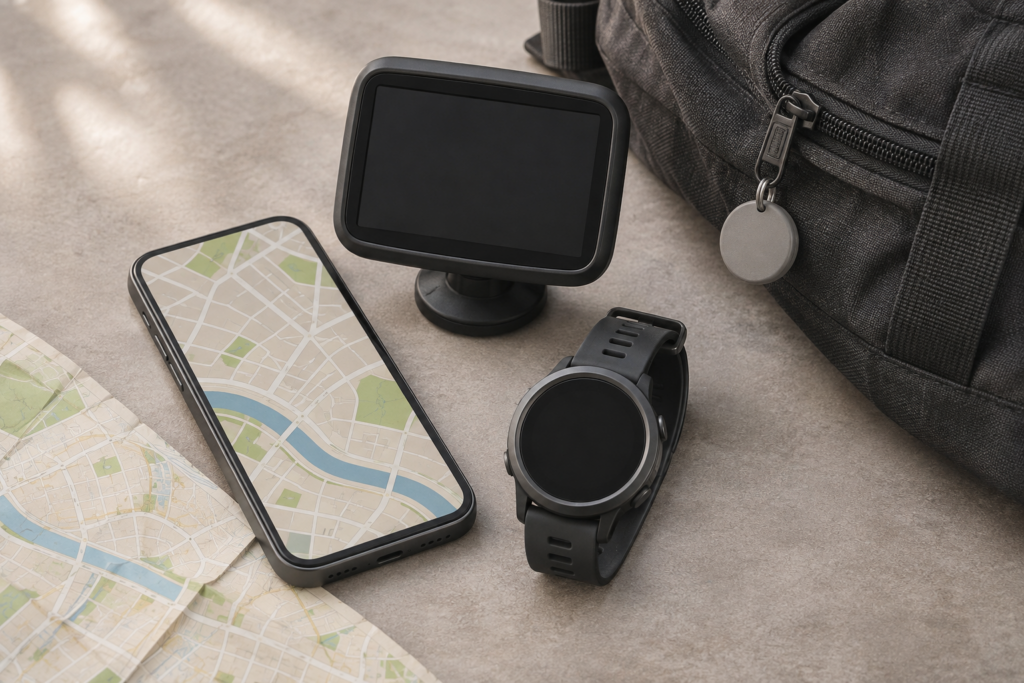
Think about making plans with someone who uses a different screen from you. You might both say “the hotel” and mean different things: the place you picked or the guidance the DriveSmart will give. The examples here make that distinction explicit.
Tip: Try naming two roles before you worry about model numbers. For the Garmin example, name who picks the stop and where you’ll get directions. Start with the navigator’s screen or voice if you’re describing the guidance side of the arrangement.
A hotel on your itinerary, a lost bag and the area around a town can all come up when you’re discussing a location. The terms below help you get specific. Start with the simplest unit, a selected destination.
The selected place a navigation leg is meant to reach.
A device that has been set up to connect to a particular counterpart.
An owner’s temporary Find My page for a lost AirTag or compatible accessory.
Selected controls for a compatible paired communicator.
A phone setting that grants an app a particular kind of access.
A section of a map saved for use without an internet connection.
Tip: Before saying that a travel tool “has the location,” try naming what you mean. A destination is a place you choose to go. A downloaded map has a boundary even when the places on it change from one day’s plan to the next.
Imagine you’re parked outside a train station. Your passenger has the street address for tonight’s hotel in a message. You want the next leg to begin with that address and end at the hotel. With a connected DriveSmart 66, 76 or 86, the handoff starts on the phone.
If you’re telling a travel companion how the devices fit together, make the two roles explicit: send the selected place from the phone and follow the navigator once guidance starts. That sentence tells them where to look at each part of the task.
Suppose a travel companion is staying with friends while you’re across town. You want them to see the approximate location of the AirTag attached to your missing bag. You can share a temporary view in Find My. Here the other end of the handoff is a person who’s agreed to help.
Suppose your companion asks what they’ll see. You can explain that the view concerns the particular item you shared, such as one overnight bag, and let your companion decide whether they’re free to help.
A remote can be useful even when the two devices are both with you. Imagine taking a pack on a day trip and keeping the communicator inside it. The standard fēnix 8 can operate tracking controls on a paired inReach Messenger Plus.
If someone says they started tracking on their watch, ask which device held the service. In the pack example, the wrist supplies the control and the communicator retains the service. You might be wearing the watch while a companion carries the pack.
Suppose you’ve saved an afternoon appointment at a museum. In your calendar, “Meet Alex” is a perfectly useful name: it tells you who you’re seeing. Waze needs an event address for a reminder. You can imagine sending “Meet Alex” to a friend without the rest of the details and immediately seeing which information is missing.
When the museum appointment is already on the calendar and a companion asks about the alert, ask which part of the setup they mean. An address the app can use and permission to show notifications are separate conditions.
Picture two people getting ready to walk around a city for the afternoon. One is taking a phone. The other is taking a watch. Apple’s iOS 26 and watchOS 26 guides describe both phone-held and watch-held map access in a paired setup.
Imagine you and your companion agreed to meet for lunch at a specific corner. The saved map is part of that plan. If you’re heading out with just your watch, look for a watch-held copy.
Picture a friend opening an item link and a traveler checking a downloaded map. First ask who can see the view. Then ask where the copy lives.
Imagine your travel companion agrees to help after you leave your overnight bag somewhere. They sign in with an eligible account to open the shared item view. You might arrange a time to talk before either of you heads out for the evening.
Apple’s iOS 27 guide excludes items near the iPhone used to share. Supplying updates to an existing share requires at least one online Apple device signed in to the owner’s account.
Imagine leaving your phone in the room for a short walk with a friend. You’ve agreed where to meet in the park. A phone-held map needs the nearby iPhone. A watch copy works without that phone nearby.
Imagine a different walk where your friend is carrying the Messenger Plus and you’re wearing the paired fēnix 8. To keep using the wrist remote, keep the communicator nearby. It makes a difference whether you intend to spend the afternoon together or each go your own way.
A label in one app can tempt you to fill in the rest of the story yourself. Start by asking what that label actually establishes. For example, Android has distinct app location settings.
The DriveSmart supplies guidance once it’s underway. The important distinction is which screen you’ll follow during the drive.
Access requires an eligible sign-in.
Keep the subscription active on the Messenger Plus. The watch gives the command.
Android gives location its own permission. You can check Waze’s location allowance in the phone’s settings.
An offline map covers its selected area. If you’re visiting two towns, check whether both fall within the download. Offline maps are available in select regions.
Tip: When you describe a permission, give it a name. On Android, location access while using the app and access at any time are different settings. That wording helps a second person understand what you’ve checked.
Start with whichever part of the setup changed. A renewed subscription and a newly saved appointment would lead you to different questions. For the Garmin remote, check active service on the communicator.
Garmin describes the place syncing on the next connection. The two paired devices reconnect automatically when they’re powered on and within range.
Look for the entry in the navigator’s recent-location history. If you’ve got two hotel branches in your notes, check for the one you sent.
For continued access, request a replacement link from the owner.
On iPhone, the Find My item’s sharing details include rows for visits and expiration. That gives the owner a specific place to look after sending the link.
The remote widget leaves incoming forecast data out of watch notifications.
Waze reads the Android default calendar. An event from another calendar needs to sync there and may fail to do so. If you created it since Waze was last open, try reopening the app.
This is an Android phone feature. Waze excludes Android Auto, Android Automotive and CarPlay for these reminders.
Use Resize for the saved map in iOS 26. Set the new boundary, then download it again. If you’ve booked a second place for the next night, that neighborhood might be the part you want to include.
Tip: When a trip changes, start with the specific record you edited. The Waze calendar connection uses Android’s default calendar. If you keep appointments in several places, that gives you a particular one to look at.
Try describing your setup in one sentence. Who or what starts it, what goes across, what receives it, and what needs to be true at that point? A destination sent to a navigator is a small, concrete answer. Someone hearing it can picture the two devices and say which part of the task they’re helping with.
Before a trip, use that sentence to decide where to look. If you expect to carry a map on Apple Watch, look for its watch-held entry. That detail is specific enough to share with a companion who’s planning to leave their phone behind.
Choose a Review Streets archive by article format.
Open the archive for travel navigation and tracking lists.
Go to the archive for side-by-side comparisons.
Visit the archive for buying guides in this category.
Choose a retailer
Prices checked regularly. We may earn a commission at no cost to you.