When to Use Guided Meditation Devices Instead of Meditation Headbands

Use a guided meditation device when you need someone to walk you through a specific exercise and it plays a lesson you can follow. If your headband’s app already plays that lesson on its own, start there. A separate player makes sense if it gets you to the instructions in a way you prefer.

By: Review Streets Research Lab
Updated: November 25, 2026
Explainer · 10–12 min read
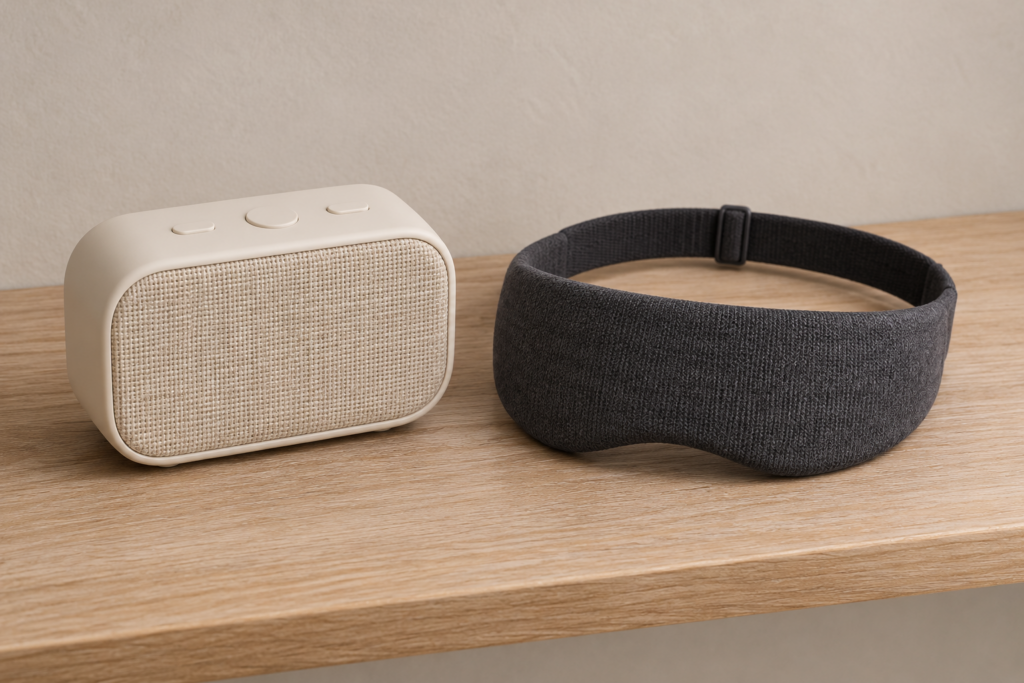
Cream tabletop audio player beside a charcoal fabric meditation headband on a wooden shelf.
What you’ll learn

Choose how the lesson reaches you

Start with the guide you want to hear. Decide whether playback is enough for this session or you want the setup to do something else as well.

  • Describe the exercise you want in terms of what you’ll actually do.
  • Recognize when the recording itself gives a new direction.
  • Find out how you’d get to the lesson in the room where you plan to use it.
  • Identify the job of the particular band you’re comparing.
  • Decide which setup steps are worth doing for this session.
  • Ask which parts of the session you’d choose separately if the app offers several modes.
  • Write down the title of the recording and check which of your options can play it.

Tip: Name one setting you’d leave off while you listen. Check whether the mode lets you keep the guide you want with that setting off.

Key terms

What each part of a session does

These terms help you ask for a more specific answer than “it guides meditation.”

Practice instruction

The words a teacher gives you to follow in an exercise.

  • Where to focus: A focused-attention practice might use a sound as the thing you listen to.
  • When to move on: In a body scan, the guide can lead you from one area of the body to the next.
  • How to return: A breath-awareness lesson can remind you to attend to breathing again.

Meditation headband

A band worn on the head during meditation. Look up the function of your exact model.

  • As an audio accessory: A speaker-equipped band can play sound from a connected device.
  • As a sensor: An EEG headband can pick up electrical activity from the brain.
  • App compatibility: Check what the app contributes to the mode you’re considering.

Sensor contact

Where a wearable’s sensors meet your skin.

  • Placement: Muse 2’s specified contact points are at the forehead and behind both ears.
  • Fit: Muse’s Athena instructions call for clearing hair that stops the sensors making contact.
  • If tracking drops: A lost signal can leave an empty stretch in the tracking record. Look back at the lesson separately.

Signal

The activity a sensor detects, such as electrical changes recorded by electroencephalography (EEG).

  • What was sensed: An EEG reading and a heart-rate reading describe different things.
  • What can get in the way: A clenched jaw can interfere with Muse’s EEG readings.
  • What the app makes of it: An app can process readings into a score. When a label sounds familiar, look up the measurement behind it.

Live biofeedback

Information the system gives back during the session based on what it’s sensing.

  • Through sound: A soundscape can change as new readings come in.
  • On a screen: Flowtime’s live display includes heart rate in beats per minute.
  • Timing: Decide which information you’d want during practice.

Guidance with tracking

A guided session with sensor recording.

  • Keep the recording in view: Write down which guide you’d open.
  • Ask when it appears: Check whether the mode offers a report afterward.
  • Check the mode: A separate mode may layer live cues onto a recording. Verify the mode before deciding which sounds you’ll hear.

Tip: Use the name of the mode when you look up what the device supplies.

The exercise

Identify the lesson you want to play

A guide’s words belong to a particular lesson. Give that lesson a name before deciding how you want to hear it.

  • A body scan can direct attention to an area of the body. That’s one kind of instruction you might want to hear.
  • A guide can name the next area to notice. Use the name of the lesson when you look for its recording.
  • In one VA breath-awareness exercise, the guide asks you to refocus on breathing after a distraction.
  • Zenimal’s Orca collection is instrumental. If you want a teacher’s voice, make that part of your search.
  • Morphée’s US page lists a body scan and offers audio excerpts. Check which recording an excerpt represents before relying on it.

Once you’ve named the lesson, you can check which setups let you hear that recording.

Playback

Find out how you’ll reach the lesson

Picture selecting the session where you’ll actually sit down to use it. The practical questions are which recording you can reach and what you need on hand to start it.

  • Zenimal+ comes with Geode, a collection that includes breath and sleep tracks. Check the contents for the exact recording you have in mind.
  • Zenimal+ can play the recordings from its physical card offline. That matters if your plan is to leave your phone in another room and still have the lesson at hand.
  • Look up the lesson’s access requirements in the app. Muse, for example, includes its Guided Meditations catalog in Premium. If a particular recording is the reason for your choice, check your access to it first.

A separate player earns its place when it gets you to a lesson you want under the conditions you care about.

The headband

Identify what the chosen mode gives you

Start with the description of a particular session. Phrases such as “listen,” “track” and “guide” leave open what you’ll be asked to do while the session runs.

  • Look for the stated audio or sensing function. SleepPhones, for example, are headband headphones with built-in speakers. The shape alone leaves the job open.
  • Look up where the displayed result comes from. Muse sends its EEG readings to the app, which uses processed data to produce metrics such as a calm score. Take the score as the app’s output when deciding what information you’d be adding.
  • In Muse’s Mind biofeedback mode, the system turns incoming readings into weather sounds. Think about what hearing a responsive sound would add to a session where you want a teacher to lead.

Give each thing the mode supplies its own line. Decide which outputs would be useful while you’re listening to this lesson.

Getting started

Consider what you want to set up and hear

Imagine you have time for one recording and want to settle straight into it. The preparation and the audio you hear once it starts are part of the choice.

  • Count the steps between deciding to practice and starting the session. Muse connects to a mobile device over Bluetooth, and its documented Mind biofeedback setup includes a sensor check before the session.
  • Think about fit as part of setup. Muse 2 needs contact in the places specified by its fitting guide. If you primarily want the instructor’s voice, decide whether fitting a band is something you want to do for that session.
  • A responsive soundscape can change during practice. Decide whether listening for another sound belongs in this session.

If you’d rather sit down and listen to one voice, choose a setup that lets you start the lesson that way.

Mode choices

Choose what to add to the lesson

Keep the recording in view as you compare configurations. Check the name of the mode before assuming what it will add to the lesson.

  • Muse Guided Meditations can play with the band off. Use that option if you only want the guide and the lesson is available to you.
  • In Muse Guided Meditations you hear the instructor without live audio feedback. A report afterward requires a compatible band, such as Muse 2, worn and connected while it collects usable readings.
  • Muse’s separate Premium External Audio mode can add live feedback to audio from another app. Confirm that the mode works with your exact recording and that a compatible band is worn, connected and supplying usable readings.

Hold on to the lesson that teaches what you came to practice. From there, choose the version of the session with the sound and setup you want.

Two examples

How the choice plays out

One listener wants to leave the headband aside. Another wants a record of the session. Both want to hear the lesson they picked.

You want to leave your headband aside

Imagine you’ve picked a body scan that directs you to different areas. You want to hear it through a speaker with nothing against your forehead. If the exact recording is on your Zenimal+ card, its speaker can play it offline. You’re only trying to hear the lesson.

Check whether your app can also play the same track with the band off. If neither option has it, UC San Diego lists other body scans. Choosing one would mean listening to a different lesson.

You want a report on your own session

Your usual track is in Muse Guided Meditations, and this time you want an after-session report. Follow the report setup above for that exact track.

Suppose the guide stays audible and the report has a gap. A loss of sensor signal or a Bluetooth disconnect can leave missing readings. Recall what you heard when deciding whether to use that setup again.

Assumptions to check

What the device label can tell you

These claims are worth unpacking when the feature list sounds more decisive than it is.

“A headband that plays meditation audio must read brain activity.”

A head-worn audio accessory can simply serve as speakers for a connected device. Look for a documented sensor if that feature matters to you.

“A higher calm score shows better meditation skill.”

In one older study of novice university students, baseline scores on a mindfulness questionnaire showed no correlation with the Muse calm scores in that study. To evaluate a lesson, ask whether you could follow what the teacher asked you to do.

“I’ll lose the instructor if I use a headband system.”

Muse Guided Meditations have an instructor. Check the title before you start.

“More feedback will make the teacher easier to follow.”

In a mode with a responsive soundscape, decide whether you’d want to hear it alongside the guide. In this example, the extra sound has a separate job.

“A more elaborate setup makes the exercise more effective.”

Fitting and checking a sensing band prepares it to collect data. What you learn from the recording depends on the instruction you hear and what you can do with it.

Tip: For a feature you’re unsure about, jot down what the system picks up and what it gives you back. Then return to the lesson itself.

Practical details

Questions before you start a session

A few details can decide whether your chosen lesson fits the setup you plan to use.

Where can I look up a named body scan?

UC San Diego’s Center for Mindfulness lists body scans at several lengths. Check the title so you know which recording you’re choosing.

Do I have to wear headphones with a standalone player?

Check the model. Zenimal+ has a speaker and an earphone jack. Use the jack if you’d rather keep the audio to yourself.

How do I change the tracks on a player that uses cards?

On card-compatible Zenimal models, the installed card determines the track assigned to each button. Verify that a collection fits your model before getting it.

Does owning a Muse band give me the guided library?

Muse lists its Guided Meditations library as a Premium subscription feature. Check which lessons you can open with your current access.

Can I keep a recording from another app and track the session?

Flowtime documents recording through Timer mode while another app plays audio, provided Flowtime stays in the foreground. Check any other setup separately if you plan to keep the same recording.

Can I wear glasses with a Muse band?

Muse’s fitting guidance allows for glasses when the sensors still touch the skin behind your ears. Metal frames can interfere with the signal check.

Can the session keep going if the band disconnects?

Muse says a session can continue if you dismiss the alert after a prolonged Bluetooth disconnect. Tracking may pause or drop out entirely.

What counts toward practice time?

Muse counts practice minutes for Guided Meditations played with the band off. That setup supplies no sensor data.

Tip: When a detail matters to your session, search the maker’s help for both the exact model and the name of the mode you’ll open.

Bottom line

Choose the lesson you want to hear, then decide what else you want from the setup. The recording stays your reference as you compare modes.

Before changing the setup, name what else you want it to do. If the choice is clear, write down the player and mode you’ll actually open.

Related reading

Guided meditation device resources

Continue through the guided meditation devices category.

Lists

Go to the guided meditation device lists hub.

Buying guides

Explore buying guides if you’re ready to think about what you’d use.