
Why Meditation Headbands Meditation Headbands Daily Routine Matters

A routine makes it easier to fit a meditation headband session into the time you have. In Muse Mind Biofeedback, the length you pick is the practice interval. The app’s start and finish steps can take time too. Leave a little room around the timer so your next commitment doesn’t arrive while you’re still getting set up.

By: Review Streets Research Lab
Updated: November 25, 2026
Explainer · 12–15 min read
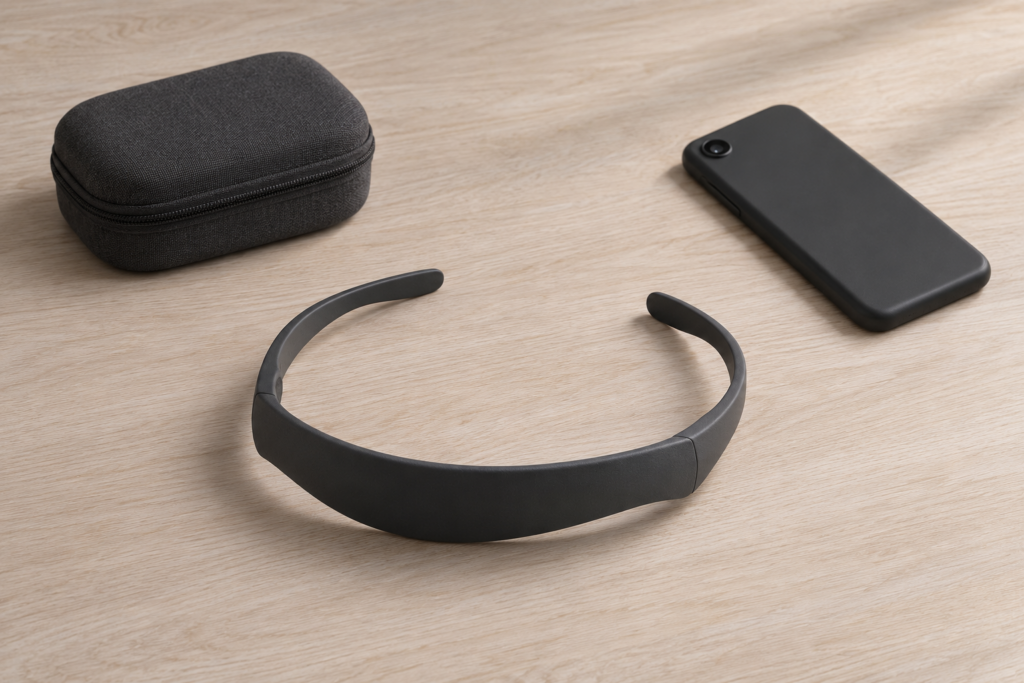
Charcoal meditation headband beside a face-down phone and a closed case on a pale wood table.
The routine at a glance

Where session time goes

Start with the time you actually have. The app’s practice interval can sit between a start-up check and a separate finish action.

  • How much of your calendar slot the in-app duration accounts for
  • Which power, connection and content tasks you can move earlier
  • What to look for when you put the band on
  • How to tell when the selected session starts and how to close it
  • What to do about an intentional pause or a lost connection
  • What to write down when the same snag keeps coming up
  • How to leave the band ready to find and use again

Tip: Open the app and find its connection screens before the first time you’ve set aside to practice. That gives you a chance to find your way around without watching the clock.

Key terms

The parts of a headband session

Use these terms to pinpoint where you lost time or why you had to stop.

Session

One run of the practice or experience you select in the app.

  • Experience: The activity you open in the app, such as the soundscape you intend to use.
  • Duration: The length of the practice interval. This is the number to use when you work out what else will fit in the same window.
  • Finish: The action that closes a run in a mode with its own end control. It’s worth finding this before you need to put the phone away.

Setup

The preparation that gets the gear, connection and chosen content ready for a run.

  • Power: A battery check answers whether the band is ready to use or needs time at the charger first.
  • Connection: The link that lets the app recognize the band. Give first-time pairing its own place on your calendar.
  • Access: Decide which content you want to use. Muse, for example, asks you to sign in and download the material for offline use.

Contact check

A check of how the band’s contact points sit against your skin before a session.

  • Placement: The fitting diagram or instructions tell you where to position the band so its contacts sit in the intended spots.
  • Adjustment: A small change to the fit can be the first thing to try when a contact needs attention. Use the instructions for your band to see what to move.
  • App prompt: A readiness cue, such as the sensor check Muse shows at start-up. Allow time to see what the check says before adjusting the band again.

Interruption

A break in what you were doing, hearing or recording during a run.

  • Pause: A break you start from an app control in a mode that supports it. Note where you’ll return to resume.
  • Disconnect: A break in the link between band and app. Keep it separate from a pause you chose.
  • Stopping: Ending the run through the selected mode’s finish control. This can be the simplest choice if the time you had set aside is gone.

Usage record

An app entry or a note of your own about what happened with a planned session.

  • App history: The setup guide for Muse 2 describes a history you can browse by experience type. That’s useful when you remember which activity you opened but have forgotten what day you used it.
  • Session status: Write down which screen you reached. A note such as “at the sensor check” tells you that you were still getting ready in the Muse 2 biofeedback workflow.
  • What got in the way: A few words can supply the reason the entry alone may leave out. “The dog needed to go out” is enough to explain why you stopped.

Maintenance

Care between sessions, using the instructions for your particular band.

  • Cleaning: Care directions can vary even within the same brand. Find the section for your model before deciding what to wipe.
  • Drying: If your instructions include drying, leave time for it in the put-away routine.
  • Storage: Start with the enclosure your model recommends, then give it a regular spot so you know where to find it next time.

Tip: When a plan keeps slipping, name the step that took the time. A delay putting on the band calls for a different change than a session you kept having to end early.

Before you begin

Set up before the time you’ve reserved

First-time setup deserves a slot of its own. On an ordinary day, the useful question is which jobs you can finish before you sit down.

  • Work backward from when you need to be done. Set your own cutoff before you settle in.
  • With a Muse band connected over Bluetooth, you can read its battery level in the app. Looking ahead gives you room to deal with a low charge.
  • Flowtime specifies the cable supplied with its band. Keep that cable where you normally charge it, so you don’t have to go looking for it as you’re about to sit down.
  • Muse’s headband setup uses Bluetooth. After initial pairing, the app tries to reconnect on later uses. Give yourself a moment to see that it has connected before opening the session.
  • To prepare for offline Muse use, sign in and download your chosen content while you’re online. If you often practice somewhere with patchy reception, do this from a place with a reliable connection.

When the same small window comes up again, you can spend it on the session you picked. A different mode or a later slot is easier to choose if you discover a missing download or low charge early.

Putting it on

Allow for the app’s start-up checks

Feeling the band sit in place tells you it’s on. In Muse, a start-up sensor check helps tell you when the app is ready. Leave room for the check when you get settled.

  • Muse 2’s fitting instructions place the contacts at the forehead and behind both ears. That gives you specific spots to revisit if the app is still waiting.
  • On Muse 2, move hair out from under the earpieces where the band touches your ears. If you usually wear your hair down, make that a part of putting it on.
  • Muse suggests connecting and wearing the band while you browse for a session. Muse 2’s documented biofeedback start-up goes from the sensor check to calibration, a second step the app runs before practice begins.

Muse says an option to continue early may appear and recommends letting the app finish checking all the sensors. If that’s the step that takes up the most time, leave more time for fitting the band before the practice you planned.

During the run

Leave time at both ends

A fixed cutoff changes how you plan the run. Work back from the time you need to put the phone away.

  • In Muse Mind Biofeedback, you choose a duration before starting. Set it with your whole window in mind.
  • Once the run begins, give the guide or soundscape the time you set aside. If you want to try something else, deciding what to open next time keeps that choice out of the middle of this session.
  • In a Muse biofeedback soundscape session, the app can keep tracking after the bell. Choose Continue Meditating if you’re staying, or End Session to finish. If you use Flowtime’s meditation timer with another app’s audio, close the run in Flowtime when playback is over.

The practical deadline is when you need to leave. Give yourself enough room to put the phone away by then.

When plans change

Handle a pause and a disconnect differently

If you step away, check the app when you come back. What you see there can help you decide whether to pick up where you left off.

  • To use Muse Premium’s External Audio in a Mind, Heart, Body or Breath session, wait for calibration to finish and tap pause. Start the other app’s audio, then go back to Muse to resume.
  • If you use Flowtime’s meditation timer with audio from another app, return to Flowtime once the audio starts and keep Flowtime on screen.
  • Muse tries to reconnect after losing Bluetooth. If the disconnection lasts longer and you dismiss the notice, the session can stay open with tracking interrupted or stopped.

If a Muse disconnect notice appears, read it before you decide whether to keep going. If you’re out of time, try again at your next opening.

Afterward

Leave yourself a clue for next time

The minutes after a session are a good time to jot down what got in the way. Putting the band back in its usual spot is one less thing to think about next time.

  • Writing ‘searched for a download’ gives you something to fix before the next session. Keep a note wherever you make plans, especially if you never got far enough for the app to log a run.
  • Muse’s care instructions for Muse 2 distinguish the forehead contacts and silicone earpieces from the areas you can wipe with a slightly damp cloth. For Flowtime, wipe the band when needed with a nonabrasive, lint-free cloth or wipe, then dry it promptly.
  • Flowtime’s recommended storage is a carrying case. A regular place for the case means the band will be easier to find when you have only a short opening.

Change the step that actually got in the way. Moving the case to where you normally sit may solve more than moving the appointment to a different day.

In everyday use

Two ways the plan can change

These examples show what you can arrange ahead of time and what still needs a decision in the moment.

A brief opening before dinner

Imagine you have a small window before dinner and discover the Flowtime band still needs a charge. It disconnects from the app while charging.

If the window is already tight, choose another opening for this run. On a similar day, charging while you’re occupied elsewhere would leave the whole opening available to set up and practice.

A notice you see late

Imagine you put your phone across the room before a Muse session so that you won’t keep looking at it. When you pick it up partway through, you see a Bluetooth disconnect notice.

Muse says the app tries to reconnect. After a longer disconnect, dismissing the notice can leave the run open even if tracking has stopped. Next time, keep the phone where you can see an alert from your seat. That gives you a chance to act on it during your allotted time.

Common assumptions

What the routine actually asks of you

A calendar plan answers when you can sit down and what you’ll need to get started. These assumptions can make that job harder than it needs to be.

A routine has to happen every day.

A routine can have a place in your calendar on the days it fits. Muse’s reminders let you choose days and times. Use them to reflect the openings you already have.

A streak tells me how much I’m getting out of the routine.

A Muse streak updates from sessions that have synced, so a pending upload can leave it behind. Treat it as the app’s record of attendance. Your own note can tell you what happened that day.

I need to beat my last score to finish a useful session.

Use what fit into the slot to judge the schedule. If you did the practice you meant to do and still left on time, you have the answer you need for planning.

Having the band with me means I’m ready to start.

A Muse headband session requires Bluetooth on the phone or tablet you’re using. Muse also documents different charge connectors across its bands. Before moving the routine to another room or taking it away for the weekend, think through what you’ll need with you.

An interruption means I owe the session extra time.

If Muse shows lost sensor contact, the maker suggests adjusting the fit during the run. The documented continue and repeat controls are optional. For the plans on your calendar, you can make a brief note of what happened and come back at the next opening.

Tip: If it keeps feeling like you ran out of time, compare when you meant to start with when you were actually ready. That tells you which part of the appointment to change.

App and gear questions

Reminders, playback and time away

Once you know how you’ll run a session, a few app settings can make it easier to find your content and get started again.

Where can I see what I’ve downloaded in Muse?

Open the Downloaded view in My Library to see which experiences are stored on the device. That’s the view to consult before you head somewhere without service.

When will a session I saved offline reach the cloud?

Muse says a saved offline session needs the device you used to be back online with the Muse app open before cloud sync can happen. Allow for the upload before looking for the session elsewhere.

Can I keep reminders for weekdays and silence a weekend reminder?

Muse lets you set separate days and times, then switch an individual reminder off or on with its own toggle. You can change the weekend alert without setting the weekday ones up again.

Can I open Mind Biofeedback right from Today?

Yes. You can pin the Muse Mind Biofeedback experience to Today from its description screen. The shortcut is handy if you tend to begin in the same part of the app.

Can I replay the soundscape during the same Muse session?

Yes, in the documented Muse biofeedback soundscape session. After the selected duration is up, choose to continue and use the replay control in the middle of the screen.

Do I need to check the volume when I switch Muse soundscapes?

Muse saves volume changes for the soundscape you adjusted. When you switch, give yourself a moment to set the new soundscape’s volume where you want it.

Where can I leave a note after a Muse 2 biofeedback soundscape?

For Mind, Heart, Body and Breath soundscapes, the Muse 2 starter guide lists a Journal option after you end the session. If you stopped during setup, leave a note wherever you keep your plans.

How do I put the Flowtime band away for a longer break?

Flowtime recommends switching the band off for extended nonuse. Hold its power button until the light goes out.

Tip: If you tend to use the same experience, spend a moment finding its usual way in. Then see whether the content you want is available at the place you plan to use it.

The takeaway

Plan for the time from sitting down to putting the phone away. The next time you squeeze in a session before something else, leave room for the actual start and finish steps in the app you’re using.

Once you know where the time goes, change one thing you can carry forward. If you keep reaching the chair with a band that needs charging, move the charging to a different part of the day and see whether that fixes the delay.

More on meditation headbands

Explore the category

Browse Review Streets’ meditation headband archives by format.