Why Your Shipping Label Printer Setup Matters

Your shipping label printer setup matters because loading a new size can require more than replacing the stock. Rollo’s instructions pair calibration with size settings on the computer. Keeping those in agreement is part of setup whenever you change labels, with the procedure depending on the printer model.

By: Review Streets Research Lab
Updated: November 25, 2026
Explainer · 8–10 min read
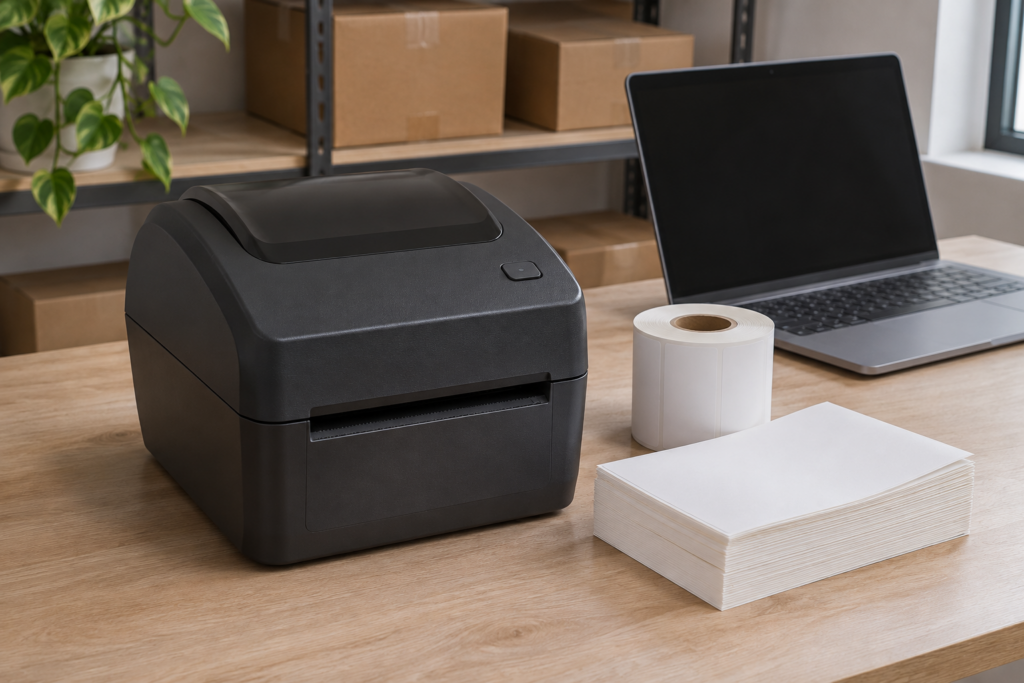
Unbranded desktop label printer beside blank label stock, a blank label roll and a laptop on a worktable.
What you’ll learn

Understand the arrangement around the printer

The examples below explain five parts of setup, then separate supply changes from computer changes.

  • How printer variants change the supplies required.
  • Why roll width and holder fit are separate questions.
  • How loading and cleaning access affect usable space.
  • Why a Rollo needs its specified power adapter.
  • Why the computer and connection route matter.
  • How loaded stock and software size selections relate.
  • What continuing cleaning and configuration care involves.

Tip: Read the model names as boundaries on the examples, rather than instructions for an unidentified printer.

Key definitions

Six terms used in setup instructions

Start with the supplies and software named in the examples.

Media

The physical material loaded for printing; labels are one example.

  • Other stock: Zebra also uses this term for tag stock and receipt paper.
  • Supply type: Rollo specifies direct-thermal labels for its printers.
  • Model example: Brother lists the QL-1110NWB as a direct-thermal printer.

Ribbon

A separate supply used with the documented thermal-transfer printer variants.

  • Zebra example: Applicable ZD421 setups use a ribbon roll or cartridge.
  • Variant boundary: The ZD421 direct-thermal version omits that supply.
  • Width: Zebra’s transfer guidance requires ribbon to cover the media and its backing.

Roll holder

A support for the label supply; Rollo offers one for rolls and folded stacks.

  • Built-in supply part: Brother’s DK roll includes its own black plastic holder.
  • Core: The center opening has to fit the external Rollo holder.
  • Roll bulk: That holder also has separate outside-diameter and label-width limits.

Printer driver

Software installed on the computer for a specified printer setup.

  • Windows example: Rollo documents USB setup for Windows 10 and 11.
  • Processor: Its standard driver supports x86 computers, with ARM requiring other guidance.
  • Installation: Rollo’s Windows procedure installs the driver before connecting USB.

Media calibration

Establishing where physical labels begin and end, as Rollo describes it.

  • Model behavior: Rollo documents different initiation behavior for USB and Wireless models.
  • Supply change: Zebra lists changed media size or type as a calibration trigger.
  • Physical adjustment: Rollo Wireless guidance also matches the guides to label width.

Paper size

The label dimensions selected in the computer’s print setup.

  • Dimensions: Rollo custom-size instructions use the label’s width and height.
  • Agreement: P-touch Editor’s selected roll size must match the installed DK roll.
  • Detection: Brother documents a Check Media control for detecting that roll size.

Tip: Keep the term and the named example together when consulting the relevant instructions.

1 · Supplies

Match the supply to the printer variant

The supply arrangement begins with the printing method. Rollo specifies direct-thermal stock; that requirement determines what belongs in its label supply.

  • Recognize the variant. Zebra’s ZD421 transfer versions require a ribbon or cartridge; the direct-thermal version does not.
  • Keep compatibility in the description. Rollo allows suitable third-party direct-thermal labels, while withholding a performance guarantee for those labels.
  • Separate roll measurements. Zebra lists the roll’s outside diameter and center-core opening independently; label width alone cannot describe that fit.
  • Keep the intended mounting. Brother’s QL-1110NWB instructions seat the DK roll’s spool arm in its guide. The supply includes its supporting assembly.
  • Allow for an external support. Rollo’s hybrid holder accepts rolls or folded label stacks and has its own size limits.

With the Rollo holder, accepting a roll means checking its core, bulk and width together. Holder limits describe the holder itself.

2 · Placement and power

Leave room for the loaded printer

A printer’s occupied space includes its label supply. Rollo’s separate roll-and-stack holder makes that extra physical item easy to see.

  • Preserve the feed space. Rollo tells users to keep incoming labels from catching on obstructions and to feed the roll straight.
  • Allow access and airflow. For ZD421/ZD621 printers, Zebra specifies a solid, level surface, room to open the printer, reachable cords and ventilation. Padding around the base can obstruct cooling.
  • Keep the specified power arrangement. Rollo calls for its original adapter plugged directly into a wall outlet; an unsuitable adapter can cause printing problems.

For the Zebra installation, a space that holds the closed case still needs to accommodate opening, supplies and care.

3 · Host and interface

Choose the actual computer connection

A host is the computer or mobile device used with the printer. Wireless Rollo instructions explicitly include adding the printer to Windows or Mac.

  • Match the Windows host. Rollo’s USB instructions cover Windows 10/11 on x86 computers; the standard driver is not the ARM route.
  • Identify the wireless arrangement. In Wireless Rollo setup, the phone app uses Bluetooth pairing to join the printer to Wi-Fi. Computer setup then calls for the same Wi-Fi network.
  • Use host-specific instructions. Brother’s Australian USB FAQ separates Windows setup from Mac routes, including model-qualified P-touch Editor, AirPrint and CUPS guidance.

In the Wireless Rollo example, replacing the computer also means considering how that computer joins the printer’s network.

4 · Media configuration

Keep recognition and selected size aligned

Rollo’s custom-size instructions combine loading and calibration with a matching label design and paper-size setting. Replacing stock can involve each of those.

  • Use the model’s recognition procedure. Rollo’s USB instructions initiate calibration with a button; its Wireless model is described as calibrating automatically.
  • Keep the application selection current. Brother identifies a P-touch Editor error when the selected roll size differs from the DK roll actually installed.
  • Use documented detection where available. Brother’s P-touch Editor FAQ offers Check Media to read the installed DK roll size.

For that Brother setup, changing what is loaded and changing what the application expects are connected responsibilities. A fitted roll still needs a matching selection.

5 · Continuing care

Give supplies and settings a continuing owner

Brother’s QL-1110NWB cleaning guidance distinguishes care for the case from care for the label outlet. Continued care is specific to the part being cleaned.

  • Follow the cleaning precautions. Rollo’s procedure starts by switching off, unplugging the adapter and allowing the printer to cool.
  • Keep a configuration record. Brother’s Windows Printer Setting Tool for the QL-1100/QL-1110NWB can export current settings to a file. Retaining that file is one practical ownership choice.
  • Recognize the support boundary. Rollo directs persistent jams, grinding or repeated lines after cleaning to support for further assessment; those symptoms alone are not a diagnosis.

For the Brother setting-tool example, decide who will retain the exported configuration and keep its purpose clear when the setup is handed over.

Reality check

Two changes, two setup questions

These hypothetical situations illustrate the documented distinctions. They are not test results.

Hypothetical: a different DK roll

Imagine a small seller replacing the DK roll in a Brother QL-1110NWB with a different size. The relevant question is whether P-touch Editor still selects the old roll size.

Brother’s mismatch FAQ connects the error to disagreement between the installed and selected sizes. This illustration identifies the setting to revisit; it does not claim a successful print.

Hypothetical: the same printer, another desk

Later, imagine that seller connecting the QL-1110NWB to another Windows computer through a desk hub. Brother’s USB troubleshooting includes removing the hub and connecting directly when detection is a problem.

That is a check on the new connection arrangement. Brother says detection can depend on the hub model; this example establishes neither a failed hub nor a successful repair.

Myths and misconceptions

Five assumptions to leave behind

These statements are useful contrasts, not claims about how frequently people believe them.

“Every label printer is ribbon-free.”

Zebra’s ZD421 family includes transfer configurations that take ribbon or a cartridge. The documented direct-thermal variant omits it.

“If the case fits, the supplies fit.”

Rollo’s external holder has separate core-opening, outside-diameter and width limits. Space for the case does not establish supply-support fit.

“The USB cable completes Windows setup.”

Rollo’s Windows instructions install its driver before attaching USB. That installation step is part of its documented setup.

“All printers learn a new roll the same way.”

Rollo distinguishes its USB calibration action from Wireless automatic calibration. Use the instructions for the actual model.

“Installed means there is no more care to arrange.”

Brother gives separate exterior and outlet cleaning instructions for the QL-1110NWB. Someone still needs to follow the applicable care guidance.

Tip: Use each correction to find the relevant manufacturer instructions, rather than to build a universal installation sequence.

FAQ

Questions that remain after installation

These narrower questions address supplies, connection checks and care.

Can I dismantle a Brother DK roll holder for reuse?

Brother says the black holder is integral to the DK roll and should remain assembled. Its US instructions apply to the QL-1100 and QL-1110NWB families named on that page.

Does buying Rollo postage replenish blank labels?

Rollo separates physical supplies sold through Rollo Shop from postage bought through Rollo Ship. A postage purchase and a supply purchase serve different needs.

Should I rule out every USB hub?

Brother’s Windows USB guidance treats direct connection as a troubleshooting check: some hub models can affect detection. It does not say every hub fails.

Can an iPhone be the printing device?

Rollo documents this for its Wireless X1040 with 4 × 6 labels on the same Wi-Fi network as the iPhone. Its current Rollo app requires iOS 15.0 or later; that app requirement is specific to that route.

Does the printer’s self-test finish Rollo USB setup?

Rollo separates its local self-test from connecting USB and printing a sample from the computer. The latter still examines the intended computer setup.

Can I clean every Brother printer surface alike?

For the QL-1110NWB, Brother excludes alcohol from exterior cleaning but specifies it for adhesive residue at the outlet with AC power disconnected. Follow the instructions for that particular surface.

What happens to the DK roll between sessions?

Brother’s QL-1110NWB guidance says to remove the DK roll when the printer is unused and close its compartment to limit dust and debris. This is that model’s instruction.

Can I carry Windows software assumptions over to a Mac?

Brother’s Australian USB FAQ lists separate Mac approaches. P-touch Editor availability depends on the model, and on macOS 11 or later only some models support the CUPS driver. Follow the applicable route.

Tip: The manufacturer guidance behind each example has its own scope; keep model, host and connection details together.

Bottom line

Keep the configuration understandable to its next operator. For the Brother QL-1100/QL-1110NWB Windows setting tool, saving the exported settings gives that person a concrete configuration record to retain.

Give that record a named keeper and decide who updates it after an agreed configuration change. This is a practical way to carry ownership beyond the initial installation.

Next steps

Continue with the format you need

Open the relevant Shipping Label Printers archive.