
Direct-View Panel
A display whose pixel surface emits or modulates light directly toward viewers.
- Geometry: fixed by the physical panel
- Contrast: less dependent on a reflective screen
- Touch: can align a digitizer with displayed pixels
Use an interactive display instead of a projector when people need to work close to the image, manipulate content directly, and see a stable picture under normal room lighting. A direct-view panel emits light from a fixed pixel surface and can integrate touch sensing, speakers, computing, and collaboration controls.
A projector sends light across the room to a reflective screen, making much larger images practical but introducing throw geometry, shadows, ambient-light competition, focus, alignment, and screen-surface dependencies. The decision is not modern versus outdated. It is a boundary between close collaborative interaction and scalable shared viewing. Room depth, audience distance, content detail, touch workflow, installation, portability, and lifecycle support determine which architecture carries the task with less compromise.
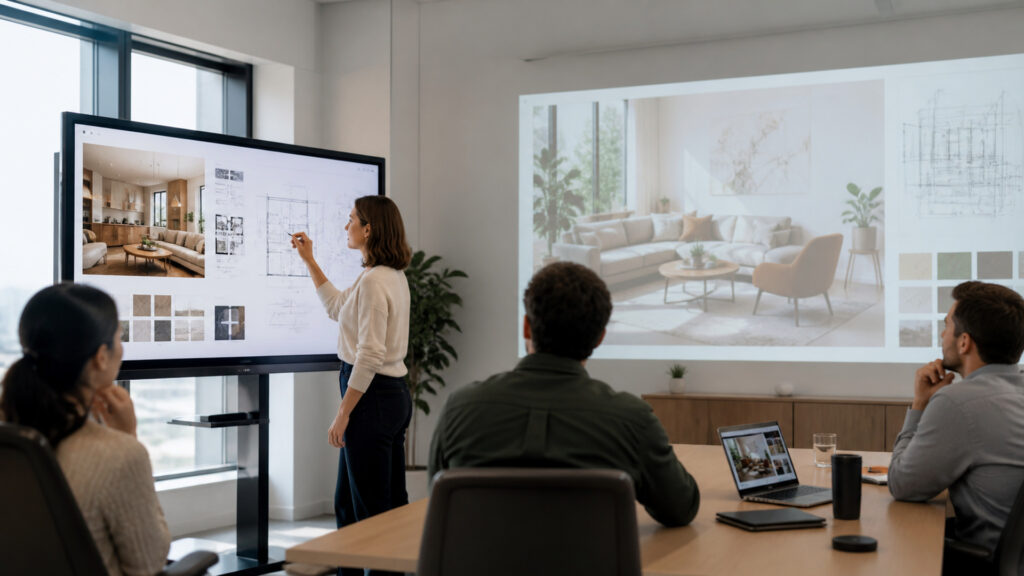
The correct choice follows the light path, interaction distance, audience geometry, content, installation, and operating workflow—not the product category's perceived age.
Tip: Test the actual smallest content from the farthest and closest intended seats under normal lighting, then run the complete annotate-save-share workflow before comparing nominal size, brightness, or resolution.
These terms explain the optical, geometric, and interaction differences that determine whether a panel or projection system fits the room.
A display whose pixel surface emits or modulates light directly toward viewers.
Projector distance from the image plane divided by projected image width.
A measure of how a projection surface redistributes reflected light relative to a reference surface.
Image processing that reshapes a projected raster to compensate for angled projection geometry.
A sensing layer that determines contact position and communicates touch or pen events to the system.
The apparent offset between a touch point and displayed mark caused by viewing angle or physical separation between sensing and image planes.
Tip: A 4K source does not guarantee 4K readable content: viewing distance, screen size, scaling, optical focus, correction, contrast, and software rendering all affect usable detail.
Direct-view panels produce a fixed-size luminous image. Projectors spread light over a chosen screen area, so increasing image size lowers luminance unless output rises. Room light also reaches the screen and reduces perceived contrast.
Interactive panels often win in bright close-use rooms because the image does not depend on preserving contrast across a large reflective surface.
Projectors can create very large images without a wall-sized heavy panel, but lens throw, mounting, focus, alignment, screen flatness, presenter shadows, and sight lines become part of the installation.
Projection remains compelling when a large audience needs one shared image whose scale would make a direct-view panel impractical.
Interactive displays align touch and pen input with the visible surface, supporting annotation, whiteboarding, object manipulation, and shared control. The benefit exists only when software preserves and distributes the work product.
Choose touch when direct manipulation is a frequent part of the work, not because an unused digitizer makes a room appear more capable.
Small text and interface controls demand close viewing and stable pixel detail; large video, diagrams, and presentation graphics tolerate greater distance. Panel size can become cramped for large groups, while projected detail can suffer from optics and ambient light.
Interactive displays fit rooms where participants can approach the image; projection fits audiences that consume rather than directly manipulate a much larger visual field.
Panels need wall structure, power, inputs, firmware, touch drivers, and safe handling of heavy glass. Projectors need mounts, signal paths, filters or light-source care, optical cleaning, screens, alignment, and controlled access.
The preferred architecture is the one the organization can install, operate, secure, support, and replace without turning routine use into a specialist event.
Neither architecture dominates every combination of image scale, room light, viewing distance, interaction, installation, and budget.
Participants work near the screen, touch and pen input are frequent, ambient light must remain on, rapid startup matters, and a fixed panel size serves the room.
The workflow can also save, distribute, and secure the annotations or collaborative artifacts created.
The room needs a much larger image for distant viewers, flexible screen size, portable deployment, or audience-scale presentation without direct touch at the image plane.
The facility can control light, throw geometry, sight lines, mounting, screen quality, and optical maintenance.
These claims ignore either the optical system behind projection or the workflow needed to make touch useful.
Touch supports direct manipulation, but collaboration still requires suitable software, permissions, facilitation, artifact capture, and participant access. A panel used only for slide playback may add cost without changing the meeting workflow.
Projection remains useful for very large images, auditoriums, divisible rooms, portable setups, immersive surfaces, and specialized optics. Its suitability depends on light control, throw, screen, viewing distance, and interaction requirements.
More light can improve luminance, but room light raises the screen's black level and reduces contrast. Screen gain, image size, viewing angle, surface, content, and light direction determine whether added output helps.
Aspect ratio, image height, mounting elevation, distance, resolution, contrast, reflections, sight lines, and content scale determine usability. A nominal diagonal alone cannot show whether text or controls are usefully readable.
Tip: Decide with room-specific evidence: light on, actual content, real participants, farthest seat, touch workflow, source switching, and support recovery all belong in the trial.
These questions convert room geometry and collaboration requirements into defensible display-selection tests.
Touch is valuable when participants frequently annotate, manipulate objects, teach, design, plan, or whiteboard at the display and the software preserves those actions. Occasional slide advancement rarely justifies the complete interaction system.
Size should follow the farthest viewing distance, smallest critical detail, room width, seating, mounting height, and content type. Test actual text and graphics because generic diagonal formulas cannot capture every application.
Ambient light reflects from the same screen that carries the image, lifting dark areas toward the room's brightness. Projector output strengthens bright areas but cannot make reflected black darker than the illuminated surface.
Yes, with interactive projectors, cameras, pens, touch frames, or separate digitizers. These systems add calibration, shadow, latency, driver, surface, and alignment considerations that a well-integrated direct-view touch panel may simplify.
Test normal lighting, all seats, smallest content, video motion, reflections, shadows, touch accuracy, pen latency, source switching, wireless sharing, external meetings, artifact saving, accessibility, startup, fault recovery, and administrative controls.
Direct-view panels avoid lamps, focus, and alignment but add heavy hardware, firmware, touch, and panel-replacement concerns. Modern laser projectors reduce lamp work yet still require optics, filters, mounts, screens, and alignment support.
Use interactive displays when close-range touch, bright-room visibility, fixed geometry, and rapid collaboration are central. Use projectors when very large imagery, audience depth, flexible scale, or portability carries greater value.
Validate real content, room light, sight lines, throw, reflections, touch workflow, source compatibility, installation, security, maintenance, and replacement. The decision boundary is architectural, not generational.
These explainers place the display choice inside the complete conference-room signal path, the managed office technology environment, and the lifecycle of physical business equipment.
See how displays, content ingest, cameras, audio, networks, room controls, and support form one meeting system.
Explore why identity, device management, interoperability, support, and lifecycle govern office technology value.
Understand how power, controls, sensors, interfaces, capacity, maintenance, and lifecycle shape physical business systems.
Choose a retailer
Prices checked regularly. We may earn a commission at no cost to you.